
Applies to: Outlook (Classic), Outlook (New), Outlook Mobile, Outlook Mac, Outlook Web.
Overview
A Microsoft 365 shared mailbox allows multiple users to send, receive, and manage emails from a common inbox. This is especially useful for teams handling group emails, such as support@ or info@ addresses.
Whether you’re managing a team inbox or a support email, adding a shared mailbox in Outlook Mobile is quick and easy. Our step-by-step guide walks you through the process so you can stay connected wherever you are.
A shared mailbox is designed to be accessed on a permission based access right, you cannot access a shared mailbox directly using a username & password.
Before you begin please ensure you have been granted access to the shared mailbox by your IT administrator.
Shared Mailboxes in Outlook (New)
After your Microsoft 365 administrator has added you as a member of a shared mailbox you will need to close and restart Outlook, the shared mailbox should automatically display in your Folder pane on the left below your mailbox.
View a Shared Mailbox in Outlook (New)
Access to the shared mailbox should automatically process and appear in your folder pane in Outlook (New).
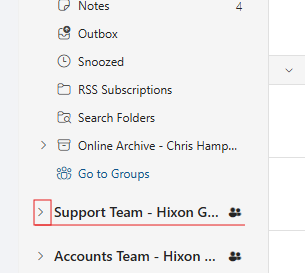
You can find shared mailboxes below your main mailbox, you may need to click the arrow next to the mailbox name to open the folder layout to view the inbox, outbox, sent items etc.
Please Note: If your administrator has only recently added you to a shared mailbox it may take upto 4 hours before the shared mailbox appears in Outlook.
Shared Mailboxes in Outlook (Classic)
After your Microsoft 365 administrator has added you as a member of a shared mailbox you will need to close and restart Outlook, the shared mailbox should automatically display in your Folder pane on the left below your mailbox.
View a Shared Mailbox in Outlook (Classic)
Access to the shared mailbox should automatically process and appear in your folder pane in classic Outlook.
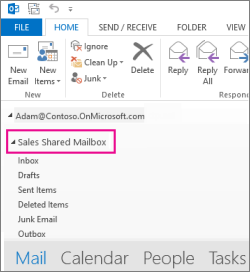
You can find shared mailboxes shown below your main mailbox, you may need to click the arrow next to the mailbox name to open the folder layout to view the inbox, outbox, sent items etc.
Please Note: If your administrator has only recently added you to a shared mailbox it may take upto 4 hours before the shared mailbox appears in Outlook.
Shared Mailboxes in Outlook (Web)
After your Microsoft 365 administrator has added you as a member of a shared mailbox you will need to configure your Outlook Web application to show the shared mailbox as default.
View a Shared Mailbox in Outlook (Web)
If you want to monitor the email from your primary mailbox and the shared mailbox at the same time, follow these instructions (You will only need to complete this once):
- Open Outlook Web (https://outlook.office.com) and login to your mailbox
- Click File, Select Account Info then Accounts >
- Select Shared with me and then click the Add button
- Enter the shared mailbox address (e.g sales@companyname.com) and click Continue
- Close the menu box to return to your mailbox.
Access to the shared mailbox should automatically process and appear in your folder pane in Outlook Web.
You can view the shared mailbox you configured below your main mailbox, you may need to click the arrow next to the mailbox name to open the folder layout to view the inbox, outbox, sent items etc.
Please Note: If your administrator has only recently added you to a shared mailbox it may take upto 4 hours before the shared mailbox appears in Outlook.
Shared Mailboxes in Outlook (Mobile)
After your Microsoft 365 administrator has added you as a member of a shared mailbox you will need to configure your Outlook Mobile application to show the shared mailbox as default.
Adding the Shared Mailbox as an Additional Account
- Open the Outlook app on your mobile device.
- Tap your profile picture or the menu icon (☰) in the top left corner.

- Select Settings (⚙️).
- Scroll down and tap Accounts → Add Account → Add Shared Mailbox.

- Enter the email address of the shared mailbox and tap Continue.
- Outlook will verify the mailbox and automatically add it to your account.
- Once added, you can switch between your personal inbox and the shared mailbox from the account menu.
Shared Mailboxes in Outlook (Mac)
The method can be used if you are a delegate managing another user’s mailbox or if you have access to more than one mailbox in a shared mailbox. This method is also useful when you have full permissions to access a mailbox.
To open the shared mailbox:
- In the Tools menu, choose Accounts, and select the account that has access to the mailbox.
- Select Delegation and Sharing
- Choose Shared With Me tab
- Choose + to add a shared or delegated mailbox
Note: If you have permissions to custom folders in the mailbox but not to the top-level mailbox folder, the custom folders will not appear in the folder list. Only default folders that you have permissions to, such as Inbox, Sent Items, Deleted Items, and Calendar, will appear in the folder list without top-level mailbox folder permissions.
