
Overview: Microsoft Designer
Microsoft Designer is a graphic design and image editing app powered by AI. It helps you create eye-catching images, craft logos and banners for your brand, design social posts, and even edit photos like an expert.
⚠️ Licence Requirements: Microsoft Designer is currently only available to users with a Microsoft 365 Personal or Family subscription. It is not available to users with Microsoft 365 Business, Business Standard, Business Premium, or Enterprise accounts. If you are signed in with a work or school account, you will not be able to access the features described in this article.
In addition to the online tools, Microsoft Designer is integrated across your favourite Microsoft apps, including Word and PowerPoint, so you can create without switching between apps.
How do I access Microsoft Designer?
- Go to designer.microsoft.com to open Microsoft Designer in your browser.
- Sign in with your Microsoft 365 personal or family account.
Once signed in, you can save your designs and return to edit them at any time.
Creating & editing images using AI in Microsoft Designer
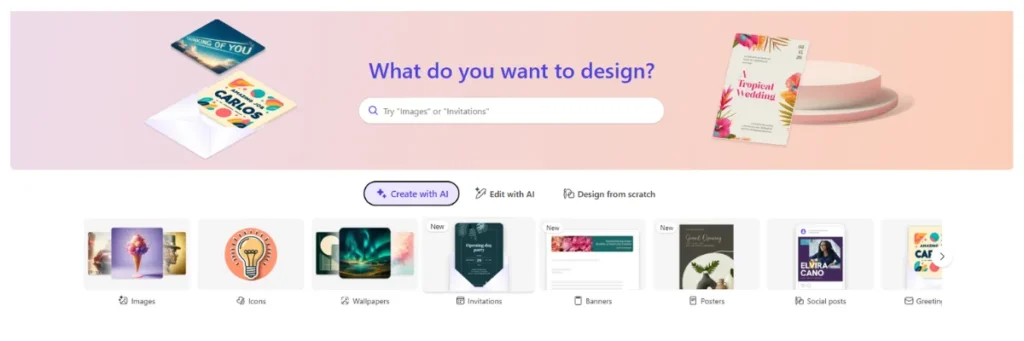
Microsoft Designer offers four starting points, each suited to a different scenario. If you have a clear idea and want AI to do the heavy lifting, Create with AI is the fastest route. For existing images you want to improve, Edit with AI is the better choice. Prefer full manual control? Design from scratch gives you a blank canvas. To work from a professionally designed starting point, use the search bar to browse templates.
Choose the option that best matches your goal below.
1. Create an image with AI using a text based description
Use this option if you want Microsoft Designer to generate designs for you.
- Select Create with AI, located below the search bar.
- Choose an option from the design carousel.
- Follow the onscreen prompts on the next page.
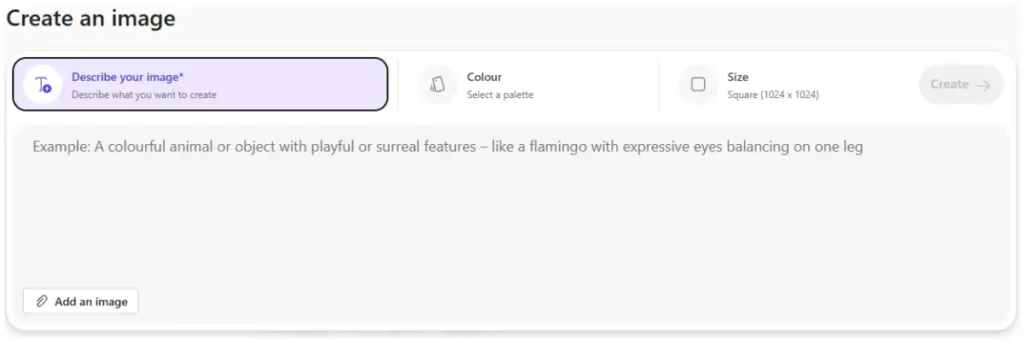
This option is ideal if you are unsure where to start or want design inspiration.
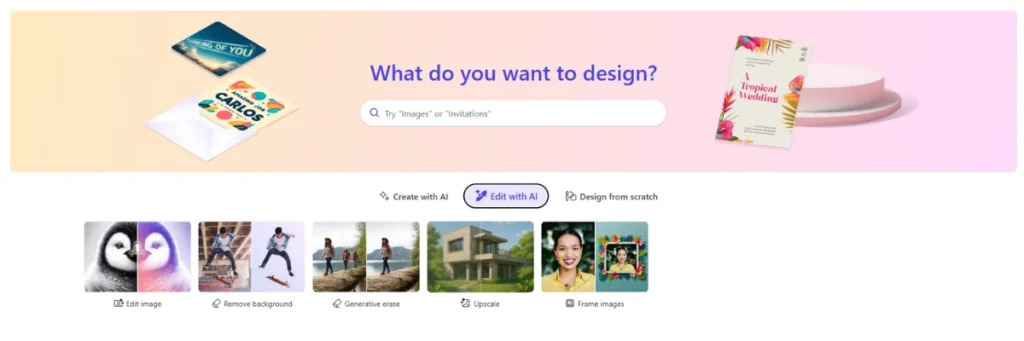
2. Edit existing images using AI tools
Use this option to edit or improve an existing image.
- Select Edit with AI.
- Select one of the available editing options.
- Upload your image when prompted.
- Use the available tools to edit and improve your image.
3. Creating a new design from scratch using AI
Use this option if you want full control over your design.
- Select Design from scratch.
- Scroll down to view all available design options.
- Select the type of design you want to create.
- Use the tools on the page to add text, images, and styling.
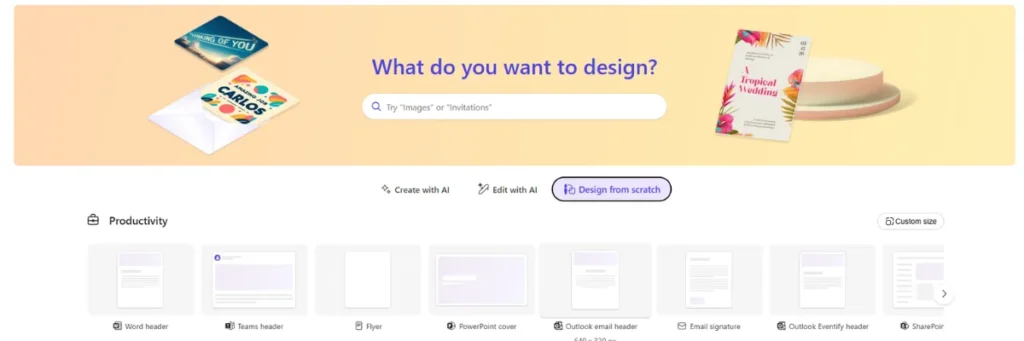
This option is recommended for users who already know what they want to create.
4. Creating a new image design using a template
Use the search bar if you are looking to design something specific.
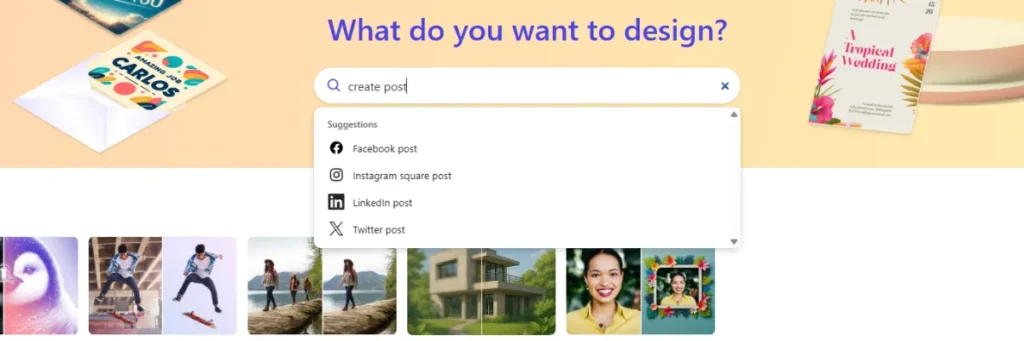
- Select the search bar at the top of the page.
- Type what you would like to design (for example: poster or Instagram post).
- If the design type is available, it will appear below the search bar.
- Select the design you want to create.
- Use the tools on the page to customise your design.
Download or share your design
Once your design is complete:
- Select Download to save it to your device.
- Select Share to send it to others or post it on social media.
Additionally, while you are signed in with a Microsoft work or personal account, the system automatically saves your designs to the cloud, ensuring they stay accessible, up to date, and securely stored across your devices.
Example Use Cases
Microsoft Designer Allows you to bring your creativity to life effortlessly, here are a few things to try:
1. Image Generation
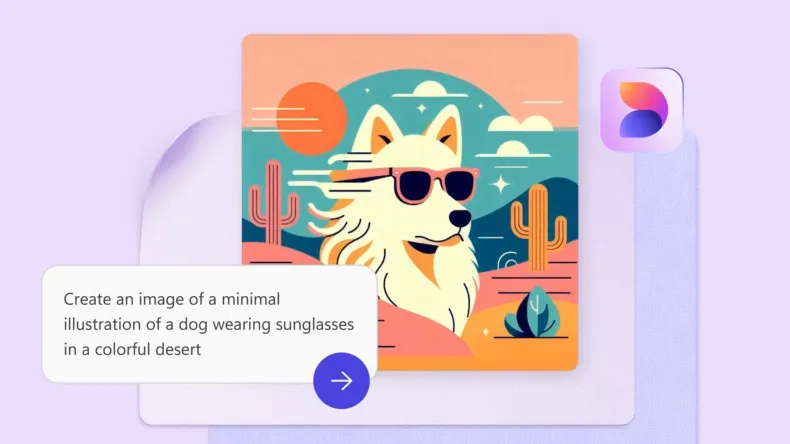
Use words to describe any idea and AI generates custom images for you to choose from.
Example: “Create an image of a minimal illustration of a dog wearing sunglasses in a colourful desert“
2. Create Stickers
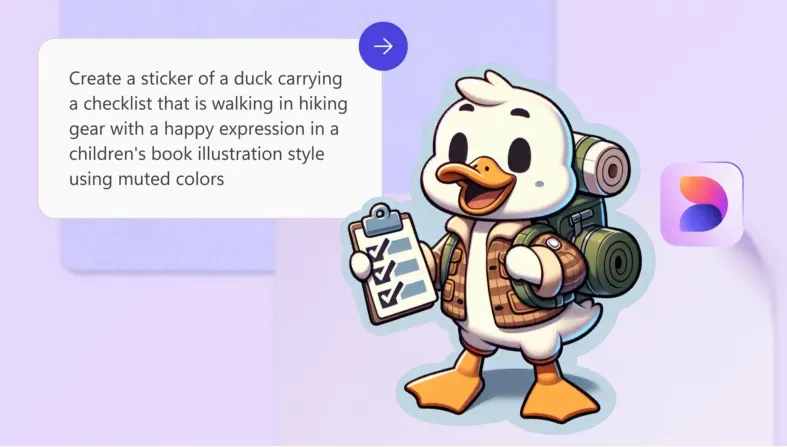
Create fun stickers to promote your brand that can be easily shared with everyone, everywhere.
Example: “Create a sticker of a duck carrying a checklist wearing hiking gear, walking along with a happy expression in a children’s book illustration style using muted colours”
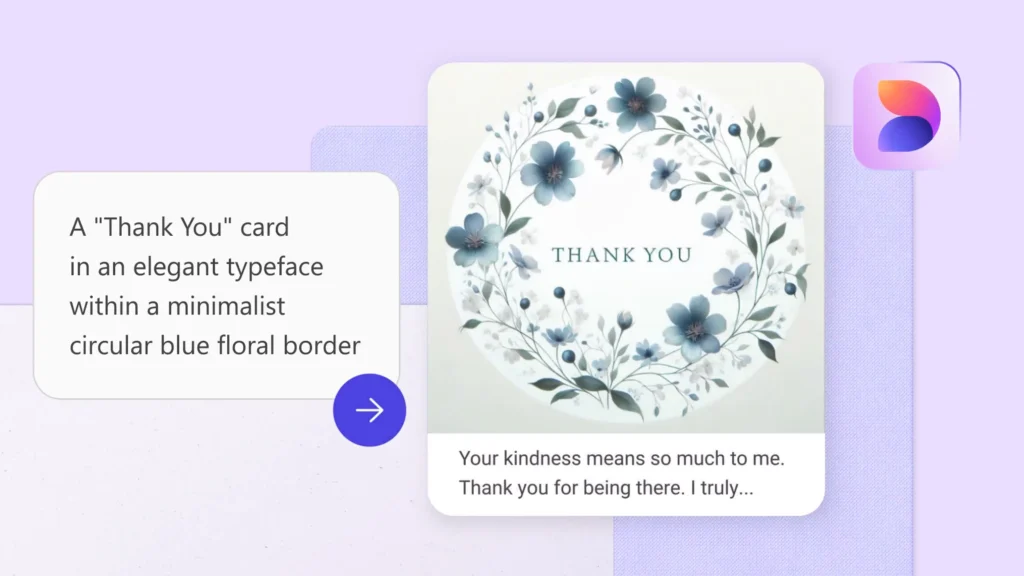
3. Greetings Cards
Craft the perfect greeting for any occasion. Just add a description and get a personalised card with words and images.
Example: “A minimalist “Thank You” card featuring elegant typography centred within a delicate circular blue floral wreath. The design should include soft, muted blue flowers and fine botanical details arranged symmetrically in a light, airy composition. Use a clean, neutral background with a refined, modern aesthetic, and ensure the overall style feels calm, sophisticated, and understated.“
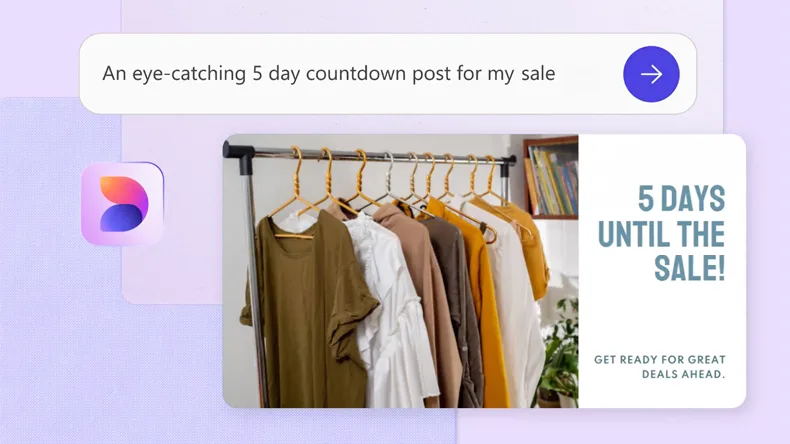
4. Social Posts
Describe the details of your social media post and AI will craft a custom social post for any occasion, big or small.
Example: “An eye-catching social media countdown post for an online store sale, featuring a clean, modern layout with a clothing rack filled with neatly arranged neutral-toned garments on wooden hangers. Include bold, clear typography displaying “5 Days Until the Sale!” with a secondary line such as “Get ready for great deals ahead.” Use a soft, light background with subtle gradients or textures, balanced composition, and a friendly, inviting tone. Ensure the design feels contemporary, minimal, and visually engaging for social media sharing.”
Hints & Tips: Getting Better Results From AI Image Generation
Getting great results from AI image generation is largely about how you communicate your idea. Here are some practical tips to help you get the most out of Microsoft Designer and AI image tools in general.
1. Be specific with your prompts
The more detail you provide, the better the result. Vague prompts produce generic images — specific prompts produce useful ones.
- Vague: “A picture of an office”
- Better: “A modern open-plan office with large windows, natural light, and people working at standing desks”
Describe the subject, setting, style, mood, and colours wherever possible.
2. Specify an Art Style
AI tools respond well to style references. If you have a visual direction in mind, include it in your prompt.
Examples of styles to try:
- Photorealistic
- Flat illustration
- Watercolour
- Minimalist
- Children’s book illustration
- Corporate photography style
3. Include Mood and Tone
Think about how you want the image to feel, not just what you want it to show.
Examples: “warm and inviting,” “clean and professional,” “bold and energetic,” “calm and understated”
This is particularly useful for business imagery where brand tone matters.
4. Mention Colours Deliberately
If your output needs to align with brand colours or a specific palette, say so explicitly.
Example: “using a navy blue and white colour palette with minimal use of other colours”
5. Iterate Rather Than Restart
If the first result is close but not quite right, refine your prompt rather than starting over. Add or remove detail, adjust the style, or clarify elements that did not generate as expected. AI image tools improve significantly with small, targeted adjustments.
6. Generate Multiple Variations
Microsoft Designer generates several options from a single prompt. Do not settle for the first result, review all variations before choosing, as the differences between them can be significant.
7. Avoid Prompts That Include People Where Possible
AI-generated people remain an area where results can be inconsistent. Where your design allows, focus prompts on objects, environments, and abstract concepts to achieve cleaner, more reliable outputs.
8. Think in Layers
If you need a complex design, break it down. Generate a background image first, then use Edit with AI or the design canvas to add text, logos, or additional elements on top. Trying to achieve everything in a single prompt often produces cluttered results.
9. Save Prompts That Work
When a prompt produces a strong result, keep a record of it. Over time, you will build a library of reliable prompt structures you can adapt for future projects, this can save significant time in future tasks.
10. Check the Output Before You Use It
AI-generated images can contain subtle errors including unusual textures, distorted text, or incorrect details.
Remember: Always review the final image carefully before using it in a document, presentation, or social post.
Additional Notes
- Microsoft Designer is currently only available to users with a Microsoft 365 Personal or Family subscription. It is not available to users with Microsoft 365 Business, Business Standard, Business Premium, or Enterprise accounts. If you are signed in with a work or school account, you will not be able to access the features described in this article.
- The type of Microsoft 365 licence you have may limit the number of requests you can make.
