
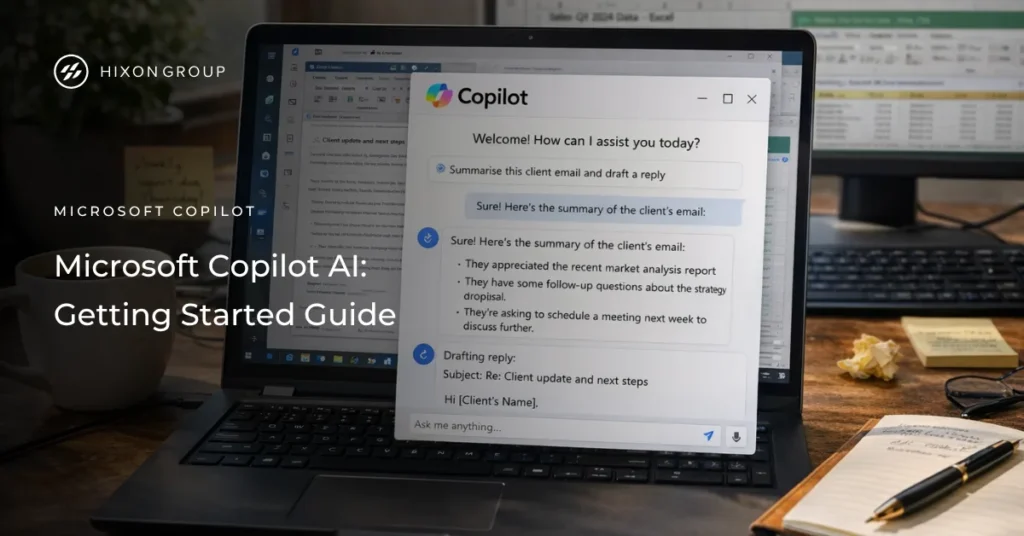
Microsoft Copilot: Overview
Most small business owners have heard of AI but are not sure where to start. Microsoft Copilot is one of the most accessible entry points available, and the free tier is more capable than most people realise. This guide walks you through what Copilot is, how to access it across your devices, ten practical things you can do with it right now, and the tips that will help you get the most out of it from day one.
What is Microsoft Copilot?
Microsoft Copilot is an artificial intelligence assistant built by Microsoft. It is designed to help individuals and businesses work more efficiently by understanding questions and instructions written in plain, everyday language with no technical knowledge required.
At its core, Copilot is a conversational AI tool. You type a question or a request, and it responds by drafting content, answering questions, summarising information, generating images, or helping you think through a problem.
It draws on large language models developed in partnership with OpenAI, the same technology that underpins ChatGPT, combined with Microsoft’s own development and integration work.
How to access Microsoft Copilot:
Copilot is available in several places depending on how you choose to access it. The simplest entry point is the web at copilot.microsoft.com, which requires nothing more than a Microsoft account.
Apps are also available for Windows, macOS, iOS, and Android, making it accessible whether you are at your desk or on the move.
- Official Website – Microsoft Copilot
- Microsoft Store – Microsoft Copilot
- MacOS – Apple App Store
- iOS – Apple App Store
- Android – Play Store
For businesses using Microsoft 365, Copilot can also be embedded directly into the applications you already use every day including Outlook, Word, Excel, PowerPoint, and Teams. This deeper level of integration requires a paid licence. The free version operates independently of your Microsoft 365 environment.
What Can Microsoft Copilot Actually Do?
Microsoft Copilot handles a broad range of everyday tasks. It can write and edit text, from emails and reports to job adverts and social media posts. Copilot can also answer questions and research topics using real-time web search, pulling together information from multiple sources into a single, clear response.
It can summarise long documents, analyse data you paste into the chat, generate images on demand, and act as a sounding board when you need to think something through.
The free tier is genuinely capable for most day-to-day business needs. The paid tier, Microsoft 365 Copilot, extends this by connecting the assistant directly to your business data, allowing it to reference your emails, meetings, files, and calendar to provide far more contextual and personalised assistance.
Is Microsoft Copilot Safe to Use?
Microsoft has built Copilot with data privacy controls in mind. For users accessing Copilot via a personal Microsoft account, conversations may be used to improve the service. For business users accessing Copilot through a Microsoft 365 commercial subscription, Microsoft provides stronger data protection commitments and your data is not used to train the underlying AI models.
As with any AI tool, it is important to exercise judgement. Copilot is highly capable but it is not infallible. It can occasionally present incorrect information with apparent confidence, particularly on specific facts, figures, or rapidly changing topics.
Always review outputs before acting on them, and seek professional advice for anything with legal, financial, or compliance implications.
Who Is It Designed For?
Copilot is built for general use, which means it works equally well for a sole trader managing their own admin, a small business team looking to speed up everyday tasks, or a larger organisation exploring AI-assisted workflows.
The free tier requires only a Microsoft account and costs nothing, making it a low-risk starting point for any business curious about what AI can do in practice.
Usage Case Examples
1. Draft Emails and Business Communications
Need to write a supplier complaint, a client follow-up, a quote covering letter, or a job offer? Describe the situation in plain English and Copilot will produce a polished draft in seconds.
A plumber, for example, could prompt: “Write a professional email to a client explaining a two-day delay on a bathroom installation due to a parts delivery issue.” The result is ready to copy, paste, and send, no blank-page anxiety required.
You can also ask Copilot to adjust tone after the fact. If the first draft feels too formal or too casual, simply follow up with “Make this sound warmer” or “Shorten this to three sentences.” This iterative approach means you are never locked into the first output.
2. Summarise Long Documents and Web Content
Upload a PDF contract, paste in a lengthy terms document, or share a web page URL and ask Copilot to summarise the key points.
The free tier supports working with files you manually upload, which means you could hand it a 30-page supplier agreement and ask: “What are the key obligations and any unusual clauses?” and have an answer in under a minute.
This is equally useful for keeping up with industry news. Paste in a long article and ask for a three-bullet summary, or ask Copilot to explain a specific section in plain English. For time-pressured business owners, this alone is worth the five minutes it takes to set up an account.
3. Research Topics and Get Real-Time Web Answers
The free version of Copilot provides real-time answers based on web search, with citations included. Ask it to compare broadband providers, summarise the latest changes to HMRC’s Making Tax Digital requirements, explain the difference between two types of business insurance, or find out what competitors in your sector are doing. It pulls current information from the web rather than relying on static training data.
Unlike a standard search engine, Copilot synthesises multiple sources into a single coherent answer. Instead of opening ten tabs and piecing together the picture yourself, you get a direct response, with links to the underlying sources if you want to verify them.
4. Brainstorm Ideas for Marketing and Content
Copilot can generate blog post ideas, social media captions, service page copy, promotional angles, and seasonal campaign concepts fast.
A local beauty salon could ask: “Give me five Instagram caption ideas for a spring promotion on gel nails.”
A roofing contractor might request: “What are ten frequently asked questions customers have about flat roof replacement?”
A letting agent could ask for ideas for a monthly tenant newsletter.
Use these outputs as a starting point rather than a finished product. Even if you rewrite 80% of what Copilot gives you, having a draft to react to is significantly faster than starting from nothing.
5. Rewrite and Improve Existing Text
Paste in something you have already written, it could be a web page description, a quote letter, an employee handbook section, or a terms and conditions document, and ask Copilot to improve clarity, adjust tone, or make it more concise.
This is particularly valuable for small business owners who are confident in their trade but less so in their written communication.
Instructions can be as specific as you need: “Rewrite this in a more professional tone, keeping it under 150 words” or “This is too technical, rewrite it so a non-technical customer can understand it.” Copilot handles both equally well.
6. Create and Refine Job Adverts
Recruiting is time-consuming. Describe the role, your business, and the key requirements and Copilot will produce a full job advert ready for Indeed, LinkedIn, or your own website. You can ask it to tailor the language for specific platforms, more formal for a professional services role, more conversational for a customer-facing position.
Go further and ask Copilot to help you think through the role itself:
“What skills and experience should I look for in a part-time bookkeeper for a ten-person construction company?” or “What questions should I ask at interview for a junior IT support role?”
Used this way, it functions as a low-cost HR consultant for businesses that cannot afford a dedicated recruitment resource.
7. Generate Images for Social Media and Presentations
Free Copilot users receive 15 image generation boosts per day using Microsoft Designer’s AI image tool, built directly into the Copilot interface. That is enough to produce social media graphics, concept visuals, or presentation imagery on demand.
A local estate agent could generate lifestyle visuals for a property listing; a café could create promotional artwork for an event; a landscaping company could produce before-and-after style concept images for client proposals, all without paying a designer or subscribing to a separate creative tool.
Remember to be specific in your image prompts for better results: describe the style, subject, mood, and intended use.
“A clean, professional flat-lay photograph of a desk with a laptop and coffee cup, suitable for a small business LinkedIn post” will produce better output than “business desk photo.”
8. Build Templates and Structured Documents From Scratch
Ask Copilot to create a meeting agenda template, a staff onboarding checklist, a basic risk assessment structure, a customer satisfaction survey, or a new employee welcome letter. Copy the output into Word or Google Docs and adapt it to your business.
A five-person construction firm, for instance, could ask: “Create a site induction checklist covering health and safety basics for a small commercial building project.” Done in 30 seconds, and a solid foundation to build on.
This also works well for creating internal process documents, something many small businesses never get around to writing. Ask Copilot to draft a social media policy, a data handling procedure, or an IT acceptable use policy, and you have a workable starting point that a solicitor or HR adviser can review and refine.
9. Analyse and Explain Data You Paste In
You cannot connect the free tier directly to your Excel files, but you can paste data into the chat window and ask questions about it. If you paste in a table of monthly sales figures and ask
“Which month showed the biggest drop and what might explain it?”, Copilot will work with what you give it.
This is a practical workaround for straightforward data queries, identifying trends, spotting anomalies, or simply understanding what a set of numbers is telling you without needing to be an Excel expert.
For more complex or sensitive data work, the paid tier is the appropriate solution, but for ad hoc analysis this approach is effective.
10. Use It as an Always-Available Sounding Board
Sometimes you simply need to think something through, it could be a pricing decision, a difficult client situation, a business process you want to improve, or a response to a negative review. Describe the scenario and ask for perspective, options, or a recommended approach.
“I run a small building maintenance company and a key client is threatening to leave over response times. What are my options?” or “A customer has left a one-star Google review that is factually inaccurate. How should I respond publicly?”
You will not always get the answer you would reach yourself, but you will get a structured, considered starting point, and often a perspective you had not considered.
Unlike asking a colleague or an adviser, there is no social cost to asking a question that might seem obvious. Use it freely.
Tips and Tricks
Understanding what Copilot can do is one thing. Knowing how to instruct it effectively is what separates useful outputs from mediocre ones. These principles apply whether you are using Copilot or any other AI assistant.
Be specific, not vague
The single biggest mistake new users make is asking questions that are too broad. “Help me with my business” will produce a generic, unhelpful response.
“Write a 200-word service description for a domestic electrical contractor targeting homeowners in the West Midlands” will produce something usable.
The more context you provide, who you are, what you need, who it is for, and what format you want… the better the output.
Give Copilot a role to play
Telling Copilot to respond as a particular type of expert significantly improves the quality of its answers.
“Acting as an experienced HR manager, help me write a disciplinary procedure for a small business” will produce a more structured and professionally grounded response than simply asking for a disciplinary procedure.
Try “as a marketing consultant”, “as a solicitor summarising this in plain English”, or “as an experienced accountant” depending on what you need.
Provide examples when you want a specific style
If you have a tone of voice you want to match, perhaps your existing website copy or a previous email you were happy with, paste it in and say “Write in a similar style to this.” Copilot will adapt its output accordingly. This is particularly useful for maintaining brand consistency across different types of content.
Tell it what to avoid
Just as important as telling Copilot what you want is telling it what you do not want. “Do not use jargon”, “avoid bullet points”, “do not mention competitors by name”, or “keep the tone formal and avoid humour” are all valid constraints that will shape the output meaningfully.
Ask for options, not just one answer
When you are not sure what direction to take, ask Copilot to give you multiple versions.
“Give me three different subject line options for this email” or “Write two versions of this paragraph — one formal, one conversational” gives you something to compare and choose from rather than accepting or rejecting a single attempt.
Use follow-up prompts to refine
Copilot retains the context of your conversation, so you do not need to start from scratch if the first response is not quite right.
Remember to follow up with specific adjustments: “That is too long, cut it by half”, “Add a call to action at the end”, or “The second paragraph is good but the first needs to be stronger.” Think of it as editing with a collaborator rather than submitting a form and accepting whatever comes back.
Always review before you use
Copilot is a capable tool, but it is not infallible. It can occasionally present information with more confidence than is warranted, particularly on specific facts, figures, or legal and financial matters.
Treat its output as a strong first draft that requires a human sense-check — not a finished product you can use without reading. For anything with legal, financial, or safety implications, verify independently before acting on it.
Frequently Asked Questions
Yes. Microsoft Copilot is free with a standard Microsoft account. You can access it at copilot.microsoft.com or download the app on Windows, macOS, iOS, and Android. The free tier includes AI chat, real-time web search, and image generation. A paid licence is needed if you want Copilot inside Outlook, Word, Excel, and Teams with access to your business data.
Microsoft Copilot is the free standalone AI assistant. It helps with writing, research, brainstorming, and image generation. It does not connect to your Microsoft 365 environment. Microsoft 365 Copilot is the paid version. It works directly inside your Microsoft 365 apps and can read your emails, summarise meetings, and analyse your files. For most small businesses, the free version is a practical starting point.
For personal Microsoft account users, conversation data may be used to improve the service. Business users on a commercial Microsoft 365 subscription receive stronger protections. Microsoft commits to not using that data to train its AI models. As a general rule, avoid entering sensitive or confidential information into any AI tool. If data security is a priority, speak to your IT provider before use.
No. The free version only requires a standard Microsoft account, which is also free to create. A Microsoft 365 subscription is not needed to access the core free features. However, some additional features may be available depending on your existing licence. Full integration across Outlook, Teams, Word, and Excel requires a specific paid add-on licence.
Yes. Copilot is capable but it is not infallible. It can occasionally present inaccurate information with apparent confidence. This is known as an AI hallucination. It happens most often with specific facts, statistics, or rapidly changing topics. Always treat Copilot’s output as a first draft that needs a human review. For anything legal, financial, or compliance related, verify independently and seek professional advice.
Summary
The free version of Copilot is a highly capable, legitimate AI tool for everyday basic business tasks.
The free version does have limitations as it can’t connect to your Microsoft 365 environment, meaning it cannot access your emails, calendar, Teams meetings, or SharePoint files.
That deeper integration is available under a paid Microsoft 365 Copilot licence.
If you are ready to explore upgrading, Hixon Group can advise on the right Microsoft 365 licencing and deployment options for your business. Get in touch with our team or book a free consultation to find out more.
